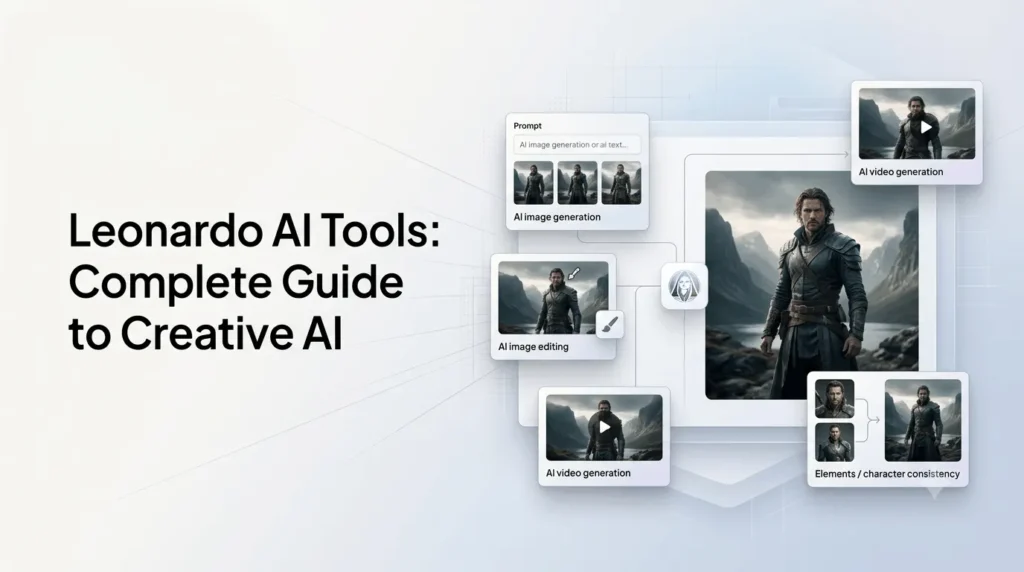
Leonardo AI is more than an AI image generator. Its creative toolkit now covers image generation, video creation, AI editing, image guidance, real-time ideation, upscaling, custom model training, and pre-built workflows. The platform also brings multiple third-party AI models into the same creative workspace.
For creators, marketers, designers, game developers, and content teams, the main advantage is workflow: you can generate an image, refine it with AI, maintain a consistent character or style, upscale the result, and move into video creation without having to build the entire process around separate tools.
What Are Leonardo AI Tools?
Leonardo AI tools are a collection of AI-powered creative features for generating, editing, transforming, enhancing, and organizing visual content. They include text-to-image generation, image-to-image transformation, AI image editing, Image Guidance, Flow State, Realtime Canvas, Elements, Blueprints, background removal, upscaling, and video generation.
The exact models and capabilities available inside individual tools can change as Leonardo adds new models and retires older ones, so this guide focuses on the platform’s current tool categories rather than treating every model as a permanent feature.
What Can You Do With Leonardo AI?
The platform can support a workflow such as:
Idea → Generate → Refine → Edit → Maintain consistency → Upscale → Animate → Export
Its major capabilities include:
- Generate images from text prompts
- Transform existing images
- Edit images using natural-language instructions
- Use images as references
- Create and maintain consistent characters and styles
- Explore multiple visual directions
- Generate and edit video
- Remove backgrounds and unwanted objects
- Upscale images for larger outputs
- Train custom Elements using LoRA-based techniques
- Use ready-made Blueprints for repeatable workflows
- Access supported models through the API
That makes Leonardo more comparable to a creative AI workspace than a single-purpose image generator.
Leonardo AI Tools at a Glance
| Tool | Main purpose | Best for |
|---|---|---|
| AI Image Generator | Create images from prompts | Artwork, marketing, concepts |
| AI Image Editor / Omni | Edit existing images with prompts | Retouching and transformations |
| Image Guidance | Control outputs using references | Characters, poses, styles |
| Flow State | Explore visual directions | Brainstorming and ideation |
| Realtime Canvas | Generate visuals while sketching | Rapid visual exploration |
| Video Generation | Create moving visuals | Clips, animation, storytelling |
| Elements | Train reusable visual characteristics | Characters, styles, products |
| Blueprints | Use pre-built workflows | Faster production |
| Background Removal | Isolate subjects | Product and marketing assets |
| Object Removal | Remove unwanted elements | Photo cleanup |
| AI Upscaler | Increase image resolution | Production-ready assets |
| Canvas Editor | Refine compositions | Detailed visual editing |
| API | Integrate generation into software | Developers and businesses |
1. Leonardo AI Image Generator
The Leonardo AI Image Generator is the foundation of the platform. It converts text prompts into images and can also work with image references and different generation models.
You can use it for:
- AI art
- Product concepts
- Marketing graphics
- Character design
- Game assets
- Concept art
- Illustrations
- Photography-style images
- Social media visuals
- Advertising concepts
Leonardo’s current image-generation experience also supports image-to-image workflows, Image Guidance, consistent characters and styles, Omni editing, and upscaling.
Text-to-image
Text-to-image generation is useful when you are starting with an idea rather than an existing asset.
For example, instead of manually creating a product concept, you can describe the subject, environment, lighting, composition, and visual style in a prompt and generate multiple directions.
The important distinction is that the model you choose affects the result. Leonardo provides access to both its own models and models from other AI companies, so users can select different approaches depending on the task.
2. Leonardo AI Image-to-Image
Image-to-image generation starts with an existing visual rather than a blank canvas.
You can use an existing image as the basis for:
- Changing its artistic style
- Creating variations
- Reworking a composition
- Developing concept art
- Transforming sketches
- Exploring different visual directions
Leonardo’s Image Guidance system can also use uploaded or generated images as references, giving users more control over how the resulting image relates to the source.
3. Leonardo AI Omni Editing
Omni Editing is one of Leonardo’s most useful tools for iterative image work.
Instead of regenerating an entire image whenever something needs to change, you can describe the desired modification with natural language.
For example:
“Change the jacket to dark blue while keeping the person’s face, pose and background unchanged.”
The current Leonardo image editor uses Omni models including GPT Image 2, Nano Banana 2, Nano Banana 2 Lite, and Nano Banana Pro, with the available model lineup subject to change as new models are introduced.
The broader Omni workflow was introduced to make generation and editing work together inside the same creative process.
What can Omni Editing do?
Depending on the model and workflow, you can:
- Remove objects
- Replace objects
- Change colors
- Modify clothing
- Adjust lighting
- Change backgrounds
- Add visual elements
- Refine details
- Create variations
- Combine visual references
This is particularly useful when an image is already close to the desired result and you only need targeted changes.
4. Leonardo AI Image Guidance
Image Guidance gives you more control than a text prompt alone.
Instead of telling the model only what you want, you can provide visual references that influence the generation.
Leonardo’s documentation describes different reference approaches, including Style Reference, Content Reference, and Character Reference, with different strength levels depending on the workflow.
This makes Image Guidance useful for:
- Character consistency
- Style matching
- Pose control
- Composition development
- Product references
- Sketch-to-image workflows
- Creating variations from existing artwork
For example, a designer could provide a rough sketch and use it as guidance for generating a more polished visual.
5. Leonardo AI Flow State
Flow State is designed for the early stage of creative work, when you know roughly what you want but haven’t settled on a final direction.
Instead of spending a long time trying to construct the perfect prompt, you start with an idea, review different visual directions, and continue refining the concept that looks most promising.
The basic workflow is:
- Enter an initial prompt.
- Explore multiple visual directions.
- Select an image or direction you like.
- Generate more variations.
- Refine the selected concept.
- Export the result.
This makes Flow State particularly useful for brainstorming, moodboards, concept development, and visual exploration.
6. Leonardo AI Realtime Canvas
Realtime Canvas is designed for fast visual experimentation.
You can sketch or create rough visual input and see AI-generated results develop as you work. Leonardo has also demonstrated workflows such as turning fashion sketches into more developed visuals.
It can be useful for:
- Early concept development
- Fashion ideas
- Character concepts
- Product sketches
- Storyboarding
- Visual brainstorming
The key benefit is speed. Rather than waiting until a sketch is finished before generating an image, the tool supports a more interactive creative process.
7. Leonardo AI Video Tools
Leonardo has expanded beyond still images into AI video generation.
Its current creative platform supports workflows such as image-to-video, alongside a growing collection of video-generation models.
Video tools can be used for:
- Animating still images
- Short marketing clips
- Product videos
- Social media content
- Cinematic concepts
- Storytelling
- Motion experiments
Because Leonardo provides multiple video models, the exact controls and output characteristics depend on the model selected.
For example, a creator might generate a product image first, refine it using Omni Editing, and then use image-to-video generation to turn the finished visual into a short clip.
8. Leonardo AI Elements
Elements are Leonardo’s implementation of LoRA-based training for maintaining consistent visual characteristics.
You can train an Element using your own images and then reuse it during generation to help preserve a particular:
- Character
- Product
- Style
- Visual identity
- Subject
Leonardo describes Elements as a way to capture a visual characteristic once and reuse it across multiple generations. Its current Element training system uses LoRA techniques with the Flux Dev base model.
This can be particularly valuable for brands and content teams that need repeated visual consistency rather than completely different AI generations every time.
Example:
Imagine a company needs 30 campaign images featuring the same fictional mascot.
Instead of describing the mascot from scratch in every prompt, an Element can provide a reusable visual reference that helps maintain the character’s appearance across different scenes.
9. Leonardo AI Blueprints
Blueprints are ready-to-run workflows that combine models, prompts, and settings into a streamlined process.
They are useful when you know what kind of result you want but don’t want to build every setting manually.
Examples include workflows for:
- Object removal
- Style transfer
- Relighting
- Outpainting
- Image creation
- Video workflows
Blueprints are especially useful for beginners because they provide a structured starting point while also helping experienced users move through repetitive workflows faster.
10. Leonardo AI Background Removal
Background removal is useful when you need to isolate a subject from its surroundings.
Common applications include:
- E-commerce products
- Marketing graphics
- Social media assets
- Character assets
- Presentation visuals
- Website graphics
For example, a product photograph can be separated from its original background and then placed into a new AI-generated environment.
Leonardo’s current editing tools group background removal alongside other image-editing functions such as object removal, Omni Editing, Image Guidance, and upscaling.
11. Leonardo AI Object Removal
Object removal allows users to remove unwanted elements from an image without rebuilding the entire scene manually.
Typical examples include:
- Removing people from backgrounds
- Removing distracting objects
- Cleaning up product photographs
- Removing visual artifacts
- Preparing images for marketing
Leonardo’s current image editor specifically includes an Object Remover workflow as part of its editing toolkit.
12. Leonardo AI Upscaler
Leonardo also provides AI-powered image upscaling for increasing resolution and improving detail.
Its current Pro Upscaler can produce output up to 105 megapixels, with Precise and Creative modes designed for different editing requirements.
Precise vs Creative upscaling
- Precise Mode is intended to preserve the original image more closely.
- Creative Mode can reconstruct additional detail and make more substantial changes during the enhancement process.
This distinction matters when you are preparing an image for production. A marketing image may benefit from creative enhancement, while a detailed product visual may require stricter fidelity.
13. Leonardo AI Canvas Editor
The Canvas Editor provides a more traditional workspace for manipulating and refining images.
It is useful when you need more control over individual parts of a composition rather than simply generating an entirely new image.
Typical workflows can involve:
- Expanding a composition
- Refining visual elements
- Removing objects
- Adjusting parts of an image
- Building larger scenes
Leonardo’s current help resources continue to list the Canvas Editor alongside its other creative tools.
14. Leonardo AI Prompt Tools
Leonardo also provides features designed to make prompting easier.
For beginners, prompt assistance can reduce the need to understand complex prompt structures immediately.
The platform’s tutorials include tools and workflows such as Improve Your Prompt and Describe with AI, which can help turn ideas or image references into more useful prompts.
This is useful when you have a visual goal but aren’t sure how to describe it precisely.
15. Leonardo AI API
Developers can access Leonardo’s generation capabilities through its API.
This opens up use cases beyond the Leonardo interface, including:
- Custom AI image applications
- Automated content generation
- Creative SaaS products
- Internal design workflows
- Marketing automation
- Image-generation features inside existing software
The API exposes supported models and generation functionality, although API availability and model support can differ from the consumer-facing interface. Leonardo also maintains separate documentation for individual models and API workflows.
Which Leonardo AI Tool Should You Use?
The right tool depends primarily on where you are in the creative process.
| Your goal | Recommended tool |
|---|---|
| Create an image from an idea | AI Image Generator |
| Transform an existing image | Image-to-Image |
| Make targeted edits | Omni Editing |
| Maintain a character or style | Image Guidance / Elements |
| Explore multiple concepts | Flow State |
| Sketch and generate quickly | Realtime Canvas |
| Create moving visuals | Video Generation |
| Remove an unwanted object | Object Remover |
| Remove a background | Background Removal |
| Increase image resolution | Pro Upscaler |
| Use repeatable workflows | Blueprints |
| Build an AI-powered application | Leonardo API |
The important point is that these tools are not necessarily alternatives to one another. A single project can use several of them.
A Practical Leonardo AI Workflow
A useful workflow for a marketing campaign might look like this:
Step 1: Brainstorm
Use Flow State to explore different visual directions.
Step 2: Generate
Create the strongest concept with the image generator.
Step 3: Guide
Add reference images through Image Guidance when consistency or composition matters.
Step 4: Refine
Use Omni Editing to change individual elements without starting from scratch.
Step 5: Maintain consistency
Use Elements when the same character, product, or style needs to appear repeatedly.
Step 6: Upscale
Use the AI upscaler when the final asset requires greater resolution.
Step 7: Animate
Move the finished image into a video workflow when a motion asset is required.
This approach is often more efficient than trying to generate the final asset perfectly in a single step.
Is Leonardo AI Free?
Yes. Leonardo offers a free plan, but usage and capabilities are limited compared with paid subscriptions.
Leonardo’s official pricing page lists:
- Free: 150 Fast Tokens per day
- Essential: $12/month
- Premium: $30/month
- Ultimate: $60/month
The paid plans provide larger token allocations and additional capabilities, while Premium and Ultimate also include relaxed generation for selected models. Pricing is listed before applicable taxes.
Leonardo also offers Team plans and an API for developers.
Because pricing, included models, and usage limits can change, users should check the official pricing page before subscribing.
What Are the Limitations of Leonardo AI Tools?
Leonardo’s tools are powerful, but they do not eliminate the normal limitations of generative AI.
1. Model availability changes
Leonardo regularly adds new models and updates the available creative stack. A model available today may later be replaced, restricted, or retired.
2. Results still require iteration
Even strong models can produce incorrect details, inconsistent anatomy, unwanted objects, or inaccurate interpretations of complex prompts.
3. Different tools behave differently
A workflow that works well with one model may not produce the same result with another. Reference handling, editing behavior, quality, speed, and available controls can vary.
4. Advanced usage can consume more tokens
High-quality models, editing workflows, video generation, and other advanced operations can consume more resources than basic generation.
5. AI editing is not the same as manual design
For highly precise commercial work, traditional tools may still be necessary for final typography, layout, vector editing, color management, or pixel-level adjustments.
Who Should Use Leonardo AI Tools?
Leonardo is particularly useful for:
- Creators: Generate artwork, thumbnails, characters, illustrations, and social content.
- Marketers: Produce campaign concepts, product visuals, advertising assets, and variations.
- Designers: Explore concepts rapidly before refining the final design manually.
- Game developers: Create concept art, environments, characters, and visual assets.
- Content teams: Build repeatable visual systems and generate large numbers of creative assets.
- Developers: Integrate AI image and video generation into applications through the API.
For users who only need occasional AI images, the free tier may be enough to experiment. More intensive workflows benefit from the additional capacity and features in paid plans.
Conclusion
Leonardo AI tools now cover most stages of a modern AI-powered visual workflow: ideation, generation, reference-guided creation, editing, consistency, upscaling, and video.
The biggest advantage is not any single feature. It is the ability to move between these tools within one ecosystem. A creator can explore ideas with Flow State, generate with an appropriate model, refine the result with Omni Editing, maintain consistency with Elements, upscale the finished asset, and then turn it into video.
As Leonardo continues adding models and changing its toolset, the platform is increasingly positioned as a multi-model creative workspace rather than a standalone AI image generator.
Frequently Asked Questions
What are the main Leonardo AI tools?
The main tools include AI image generation, image-to-image generation, Omni Editing, Image Guidance, Flow State, Realtime Canvas, video generation, Elements, Blueprints, background removal, object removal, Canvas editing, and AI upscaling.
Is Leonardo AI just an image generator?
No. Leonardo has expanded into image editing, video generation, visual ideation, custom Elements, upscaling, pre-built workflows, and API-based generation. Its model ecosystem also includes multiple third-party AI models.
What is the best Leonardo AI tool for beginners?
The AI Image Generator and Blueprints are good starting points. Flow State is useful when you have an idea but aren’t sure what visual direction to take, while Omni Editing is useful once you want to modify existing results.
What is Leonardo AI Elements used for?
Elements use LoRA-based training to create reusable visual characteristics. They can help maintain consistency for characters, products, styles, or other subjects across multiple generations.
Can Leonardo AI generate videos?
Yes. Leonardo provides video-generation capabilities and supports multiple video models. The available models, controls, and output characteristics can change as the platform evolves.
Does Leonardo AI have an API?
Yes. Leonardo provides an API for developers who want to integrate supported image and video generation capabilities into applications and automated workflows.
Also Read –
Leonardo AI Models: Complete Guide to Models & Capabilities
Leonardo AI: What It Is and How It Works? Features, Tools & Models