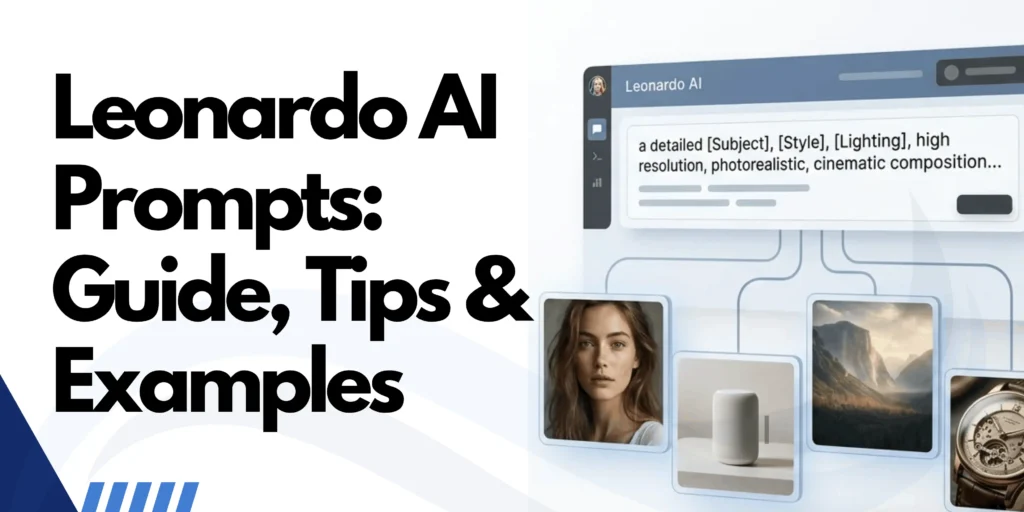
Leonardo AI prompts are the text instructions you give the image generator to describe what you want it to create.
A strong prompt explains the subject, setting, composition, lighting, visual style, and important details.
The more clearly you communicate your idea, the easier it is to guide the generated image toward your intended result.
This guide covers how to write effective prompts, practical prompt formulas, examples for different creative projects, negative prompts, and common mistakes. It also explains how to refine a prompt when the first image does not match your expectations.
Quick Summary
- Learn how to write effective Leonardo AI prompts by combining the subject, setting, lighting, visual style, and composition.
- Explore copy-ready prompts for portraits, fantasy art, product photography, landscapes, illustrations, thumbnails, and logo concepts.
- Improve image results with negative prompts, model-specific techniques, image references, and step-by-step prompt refinement.
- Understand Leonardo AI’s prompt-enhancement features, character consistency techniques, common mistakes, and free-generation limits.
What Makes a Good Leonardo AI Prompt?
A good prompt tells the model what to create, what it should look like, and how the scene should be arranged.
You do not need to use complicated vocabulary or write a long paragraph. Specific, consistent instructions usually provide a better starting point than a vague description.
Leonardo AI’s official prompting guidance recommends building a prompt around the subject, its context, and the intended visual style
Compare these examples:
Prompt: A beautiful house
The model must decide the architecture, location, lighting, colors, camera angle, and overall mood.
Prompt: A modern two-story house with warm oak cladding, floor-to-ceiling glass windows, and a flat roof, surrounded by ornamental grasses in a quiet countryside setting. Soft morning sunlight, natural materials, architectural photography, wide-angle composition, realistic shadows.
The second prompt provides a clearer subject, materials, environment, lighting, and visual treatment.
The goal is not to describe every pixel. It is to give the model enough information to understand your creative direction while leaving room for useful variation.
How to Write Leonardo AI Prompts Step by Step?
Use this six-part framework when creating an image from scratch.
1. Start with the main subject
Identify the most important person, object, animal, or scene. Put it near the beginning of the prompt.
Example: A ginger cat sitting on a wooden windowsill
2. Describe the context
Add the setting, action, time of day, weather, or nearby objects.
Example: Inside a cozy apartment, watching rain fall over a city street
3. Specify the lighting and mood
Lighting changes how a scene feels. Choose terms that support the result you want.
Examples:soft window light,golden-hour sunlight,dramatic side lighting,cool overcast light
4. Choose a visual style
Specify whether you want a photograph, illustration, watercolor painting, 3D render, or another coherent aesthetic.
Example: photorealistic editorial photography, natural fur texture, restrained colors
5. Control composition
Explain where the subject should appear and how much of the scene should be visible.
Examples:close-up portrait,wide establishing shot,subject on the left third,empty space on the right
6. Add only the important finishing details
Include details that directly affect the intended result, such as material texture, realistic anatomy, a limited color palette, or a particular focal point.
Example: individual strands of fur, sharp eyes, subtle reflections on glass, natural color grading
A reusable Leonardo AI prompt formula
You can combine these elements into a single prompt:
[Main subject] + [action or pose] + [setting and context] + [lighting and mood] + [visual style] + [composition and camera perspective] + [important details]
For example:
A red ceramic coffee mug on a pale oak table beside an open notebook, in a minimalist home office. Soft morning sunlight from the left, realistic ceramic glaze and wood grain, premium product photography, three-quarter camera angle, muted neutral palette, uncluttered composition.You can reuse the same structure for portraits, landscapes, product images, illustrations, and marketing graphics. Change the elements that matter for the new task rather than copying every detail from the previous prompt.
What are the best Leonardo AI prompts by category?
The following examples are starting points you can copy and modify. Results vary by selected model, settings, and how the model interprets each instruction.
1. Photorealistic portrait prompts
For realistic portraits, describe the subject’s appearance, expression, skin texture, lighting, and camera framing. Avoid relying on vague terms such as “beautiful” or “perfect.”
Copy-ready prompt:
Photorealistic close-up portrait of a middle-aged woman with short dark hair, natural freckles, and a relaxed expression. Visible skin texture and subtle smile lines, soft window light from the side, gentle catchlights in the eyes, neutral studio background, 85mm portrait lens aesthetic, shallow depth of field, natural color grading, editorial photography.
Why it works: It describes visible details and a coherent photographic setup instead of stacking generic quality labels. Leonardo’s own guide recommends specifying natural skin detail and eye catchlights when aiming for realistic portraits.
2. Fantasy art prompts
Fantasy images benefit from a clear subject, a recognizable environment, and a consistent atmosphere. Specify the main focal point before adding decorative elements.
Copy-ready prompt:
A lone elven ranger standing at the entrance of an ancient forest temple, weathered stone pillars covered in moss, enormous twisted trees, tiny floating lights among the branches, a narrow stream reflecting moonlight. Atmospheric fantasy concept art, cool silver-blue lighting, detailed fabric and leather textures, layered foreground and background, cinematic wide composition, mysterious and quiet mood.
Tip: If the image becomes too busy, remove secondary objects before adding more style terms.
3. Product photography prompts
Product prompts should describe the object’s shape, materials, background, lighting, and intended use. These details matter for e-commerce listings, landing pages, advertising concepts, and mockups.
Copy-ready prompt:
Premium studio product photograph of a matte-black skincare bottle with a simple cylindrical shape and a brushed-silver cap, standing on a light beige stone pedestal. Soft directional studio lighting, subtle contact shadow, realistic reflections, clean neutral background, precise focus on the product, restrained luxury art direction, centered composition, generous negative space for advertising copy.
Tip: If the product needs an exact logo, label, or package design, use an appropriate image-reference or editing workflow where available. Always inspect generated text and branding before publishing a commercial asset.
4. Landscape and nature prompts
Landscape prompts improve when they establish depth, weather, time of day, and the relationship between foreground and background.
Copy-ready prompt:
A quiet alpine lake at sunrise, a small wooden cabin beside the water, pine trees framing the foreground, distant snow-covered mountains reflected in the still lake, thin mist drifting above the surface. Soft golden light touching the mountain peaks, cool blue shadows, realistic natural textures, atmospheric landscape photography, wide-angle view, balanced foreground and background, peaceful mood.
5. Anime and illustration prompts
For illustrations, identify the medium and visual characteristics rather than combining several unrelated art styles.
Copy-ready prompt:
Anime-style illustration of a young traveler with a yellow raincoat standing on a quiet city bridge after a rainstorm, reflections shimmering on the pavement, distant buildings fading into mist, soft overcast lighting, clean expressive linework, carefully controlled cel shading, muted blue and amber palette, cinematic framing, detailed environmental background.
6. YouTube thumbnail prompts
A thumbnail needs a clear visual hierarchy and should remain understandable at a small size. Leave room for text instead of asking the model to fill every corner.
Copy-ready prompt:
A bold editorial illustration about artificial intelligence, a glowing abstract neural network device positioned on the right side, dark charcoal background, restrained electric-blue highlights, strong subject separation, dramatic but controlled lighting, simple geometric shapes, high contrast, clean composition, large empty space on the left for a headline, wide 16:9 layout, no lettering or logos.
Tip: Add the headline afterward in an image editor when precise spelling, alignment, and font control are important.
7. Logo and brand concept prompts
AI image generation can help explore visual directions, but it may struggle with exact typography and clean, production-ready vector artwork.
Copy-ready prompt:
Minimal geometric logo concept for a sustainable home design brand, an abstract leaf integrated with a simple architectural roof shape, balanced proportions, clean vector-style shapes, limited forest-green and charcoal palette, strong silhouette, flat design, centered on a plain off-white background, no gradients, no mockup, no additional symbols, no text.
Use this as a concept-generation prompt, not a guarantee of trademark-ready artwork. Refine the final mark in a vector design tool and check that it is distinct from existing brands.
How to Use Negative Prompts in Leonardo AI?
A negative prompt lists unwanted visual elements or defects that you want the model to avoid.
Depending on the selected model and generation interface, Leonardo AI may provide a separate negative-prompt field in its advanced settings.
Negative prompts can help with recurring problems, but they are not guaranteed exclusions.
Leonardo’s guidance recommends describing the desired result positively when possible and using specific negative terms when an unwanted element persists.
For example, if you are generating a product photograph and the image repeatedly contains distracting objects, a negative prompt could include:
cluttered background, extra objects, distorted packaging, blurry product edges, unwanted text, watermark
For a portrait, you might test terms such as unnatural fingers, asymmetrical eyes, distorted hands, plastic skin texture if those specific defects appear.
Positive prompting vs. negative prompting
| Situation | Better starting approach |
|---|---|
| You want an empty room | Describe an empty, unfurnished room |
| You want a clean product image | Describe a plain studio background and a single product |
| You want natural skin | Request visible pores, subtle imperfections, and realistic texture |
| You want fewer distracting objects | Specify a minimal composition; add targeted negative terms if needed |
| You want correct lettering | Give the exact short text and select a model suited to text rendering |
Avoid putting contradictory requirements in the positive and negative prompts. For instance, asking for dramatic shadows while also excluding all shadows can confuse the intended visual direction.
Advanced Leonardo AI Prompting Techniques
Once you can write a clear basic prompt, refine specific aspects of the output with these techniques.
1. Use camera and photography terminology
Camera language helps you guide a photograph’s framing and visual appearance. It is less useful when added indiscriminately to a flat illustration or graphic.
| Term | What it helps describe |
|---|---|
| Close-up | A tightly framed subject or detail |
| Wide-angle view | A broader view of the scene |
| Shallow depth of field | A sharp focal subject with a softer background |
| Overhead shot | A view looking down on the subject |
| Three-quarter view | A view showing the front and one side of an object |
| Softbox lighting | Soft, controlled studio illumination |
| Rim lighting | Light outlining the edge of a subject |
| Natural color grading | A restrained, realistic color treatment |
These phrases influence the visual direction; they do not guarantee a specific camera, lens, or physically accurate photographic setup.
2. Control composition and negative space
A prompt can describe not only what appears in an image but also where the elements should sit.
For example:
A ceramic coffee cup on the right third of the frame, a folded newspaper beside it, soft morning light, a pale neutral background, broad clean negative space on the left for advertising text, premium editorial product photography.This approach is useful for blog featured images, banners, advertisements, presentation covers, and social graphics where text will be added separately.
3. Use color palettes deliberately
Instead of listing many unrelated colors, specify a compact palette that supports the mood.
- Calm and minimal: off-white, warm beige, soft gray.
- Nature and sustainability: forest green, muted brown, cream.
- Technology editorial: charcoal, slate blue, silver.
- Warm and nostalgic: amber, muted orange, faded brown.
- Dreamlike fantasy: lavender, silver-blue, soft teal.
A palette is a guide, not a guarantee. If color accuracy is essential, inspect the generated image and make corrections in an editor.
4. Build complexity gradually
A common mistake is to combine too many subjects, styles, lighting setups, and technical terms in one prompt. Start with the essential image, then adjust one or two variables at a time.
For example:
- Generate a product on a neutral background.
- Adjust the lighting to make the product feel more premium.
- Change the camera angle if the composition is not right.
- Add supporting props only if they improve the image.
- Refine the colors and background after the main subject works.
This makes it easier to identify which instruction actually improved or weakened the result.
5. Does Prompt Order Matter in Leonardo AI?
Yes. The order of details can influence which elements receive the most attention, although the effect varies by model.
Put the most important subject or visual feature near the beginning, followed by its setting, style, lighting, and secondary details.
For example, start with “A dramatic thunderstorm over a coastal village” if the storm is the main focus, rather than beginning with a detailed description of the village.
6. Use image references when text alone is insufficient
When you need a specific composition, visual direction, or recognizable subject, a reference image can communicate your goal more clearly than a longer written prompt.
Leonardo AI documents image-reference and image-description workflows, though the available controls depend on the tool and model.
Its Describe with AI feature analyzes an image and generates a text description; it does not, by itself, use that image as an image reference.
Use references when you need to communicate:
- The general composition of a scene.
- A product’s visual appearance.
- A color palette or artistic direction.
- Details that are difficult to explain in words.
Check the specific tool’s behavior before generating. A feature that describes an image is not necessarily the same as one that uses it to guide the output.
7. Do Leonardo AI Prompts Work the Same Across Models?
Not always. Different image-generation models can interpret the same prompt differently, particularly when handling realistic details, text, references, and complex instructions.
Start with the same core prompt when comparing models, then adjust the wording and settings to suit each model’s strengths.
Don’t assume a prompt optimized for one model will produce identical results in another.
Leonardo AI’s documentation also notes that available generation and image-guidance options vary by model.
How to Keep Characters Consistent Across Images?
When creating a series featuring the same character, reuse a detailed description of their appearance, clothing, hairstyle, and distinctive features.
You can also use Leonardo AI’s available character-reference or image-guidance tools to help preserve visual identity.
For image edits, clearly state what should change and what should remain unchanged.
For example: “Change the jacket to dark blue while preserving the character’s facial features, hairstyle, pose, and background.” Results may vary by model and reference settings.
How to Generate Images Using Leonardo AI Prompts?
Start with a text prompt on Leonardo AI’s homepage, or open its image creation interface for more control. The available options vary by model.
- Open the image generator. Sign in to Leonardo AI and open the image-generation tool.
- Enter your prompt. Describe the subject, environment, style, lighting, and composition. Start with the main idea rather than a long list of unrelated modifiers.
- Choose a model. Select a model suited to your task, such as realistic photography, illustration, or text-heavy graphics. If you use the homepage’s simplified generation flow, model selection may be handled for you.
- Set the image dimensions. Choose an aspect ratio that fits your intended use. A square image may suit a social post, while a wide layout may work better for a blog banner or video thumbnail.
- Adjust other available settings. Depending on the model and interface, you may be able to choose a generation mode, number of outputs, reference images, or negative prompts. Check the displayed token cost before generating.
- Generate and review. Check whether the output follows your main instructions. If it does not, revise the prompt or settings and try again.
Leonardo’s interface and model options can change. Consult the current official image-generation guide for the latest available controls.
Can Leonardo AI Improve a Prompt Automatically?
Leonardo AI has documented built-in prompt-generation and prompt-improvement tools that can expand a short idea into a more descriptive prompt.
Availability and interface controls may change, so check the current image-generation interface.
Start with a simple idea, review the expanded description, and remove any details that do not match your vision. Automatic prompt enhancement is a starting point, not a guarantee of a better image.
How to Get Accurate Text in AI-Generated Images?
Text is one of the more demanding tasks for image generators.
Short labels and headings may work well with suitable models, but long paragraphs, small print, and complex layouts can still contain errors.
Leonardo’s published prompt guide recommends using quotation marks around the exact text, keeping it short, and describing the desired font style. Its guide also recommends Ideogram 3.0 for text rendering in the Leonardo interface; because model availability can change, check the current model list before relying on that recommendation.
For example, try this prompt:
A clean promotional poster for a weekend coffee sale. The exact headline is "WEEKEND COFFEE SALE", spelled correctly in large, bold, sans-serif lettering. A ceramic cup of black coffee sits on a warm wooden table, soft morning sunlight, minimal cream and brown palette, strong visual hierarchy, headline positioned at the top, uncluttered background.
For professional marketing materials, a reliable workflow is to generate the visual background first and add final typography in a design editor.
This gives you control over spelling, font choice, alignment, and brand consistency.
Common Leonardo AI Prompt Mistakes and How to Fix Them?
| Problem | Why it happens | What to change |
|---|---|---|
| The image looks generic | The subject or setting is too vague | Add specific visual details and context |
| The image contains too many objects | The prompt introduces competing subjects | Focus on one main subject and a few supporting elements |
| The result mixes incompatible styles | Instructions conflict with each other | Choose one main aesthetic |
| The subject is poorly framed | Composition is not described | Specify close-up, wide shot, overhead view, or subject placement |
| Portraits look artificial | Skin, lighting, or facial details are underspecified | Request natural skin texture and realistic lighting |
| Text is misspelled | The model struggles with exact typography | Shorten the wording, test a suitable model, or add text afterward |
| Unwanted details keep appearing | Negative terms are too broad or the model is struggling | Describe the desired result positively, test targeted negative terms, or try another model |
| Every variation looks different | Too many prompt elements or settings change at once | Keep the core prompt consistent and adjust one variable at a time |
These fixes are starting points, not guarantees. Leonardo’s own guidance acknowledges that negative prompts may not completely remove an unwanted detail.
Changing the model or composition can sometimes work better than adding more exclusions.
How to Improve a Leonardo AI Prompt That Isn’t Working?
When the first result misses the mark, do not automatically rewrite the entire prompt. Identify the specific problem and change the relevant instruction.
Consider this example:
Original prompt:
A modern living room with a sofa.Improved prompt:
A minimalist living room with a low-profile cream sofa, light oak coffee table, textured wool rug, and large windows overlooking a garden. Soft natural daylight, warm neutral palette, realistic interior photography, wide-angle composition.If the improved version still does not match your vision, refine it according to the issue:
- Wrong furniture: describe the shape, material, or position more precisely.
- Incorrect mood: adjust the lighting, palette, or time of day.
- Crowded composition: remove decorative objects and simplify the background.
- Wrong perspective: specify the camera angle or viewing position.
- Inconsistent details: keep the main prompt stable while testing a different model or available reference-image control.
Use a simple prompt-testing workflow
- Generate an initial image with a clear subject and context.
- Identify the most important mismatch.
- Change only the instruction related to that mismatch.
- Generate another version and compare the results.
- Keep the wording that improves the image and repeat as needed.
This process makes prompt refinement more deliberate. It also helps you learn which descriptions work well with your chosen model.
Where Can You Find Leonardo AI Prompt Examples?
Leonardo AI’s Community Feed has been documented as a place to explore generated images and inspect the prompts associated with them.
When you find an image similar to your goal, study how its creator describes the subject, style, composition, and lighting.
Use these prompts as learning examples rather than copying them blindly.
Change the subject or visual direction to fit your project, and check the current interface for community and prompt-discovery features.
Is Leonardo AI Free for Using Prompts?
Leonardo AI offers free image generation with a daily token allowance, but available models, limits, and token costs can change.
Its help documentation published in February 2026 listed 150 daily tokens for free users and explained that generation costs depend on the selected model and settings. Check the current interface for the allowance available to your account.
The prompt itself is not a fixed-cost item. Your token usage depends on how you generate the image, including the selected model and applicable settings.
If you are experimenting, start with lower-cost generation options when available, then use higher-cost modes or additional editing for the versions you want to keep.
You can also improve your workflow without spending tokens unnecessarily:
- Refine the prompt before generating multiple variations.
- Use the right aspect ratio from the start.
- Avoid adding unnecessary details that make the image harder to control.
- Review the displayed cost before each generation.
Final Thoughts
The best Leonardo AI prompts combine a clear subject with relevant context, a consistent visual style, and deliberate composition.
Start with the image you want to create, describe the details that matter, and refine the result based on what the model actually produces.
Use the examples in this guide as starting points rather than fixed recipes. As you learn which instructions work for your chosen model and workflow, you can build a reusable collection of prompts for portraits, product photography, landscapes, illustrations, and marketing assets.
Frequently Asked Questions About Leonardo AI Prompts
1. What is the best prompt for Leonardo AI?
There is no single best prompt for every image. A useful prompt clearly identifies the main subject, context, style, lighting, and composition. The best wording depends on the image you want and the model you select.
2. How long should a Leonardo AI prompt be?
Start with one clear sentence or a short descriptive paragraph. Add details only when they help define the subject, environment, style, or composition. Longer prompts aren’t automatically better, especially if they include conflicting instructions.
3. Can I copy and paste Leonardo AI prompts?
Yes. You can copy a prompt from a guide or your own saved collection and modify it for your needs. Change the subject, style, setting, and other details rather than expecting one prompt to work equally well for every image.
4. What should I put in a Leonardo AI negative prompt?
Include specific unwanted elements or defects, such as blurry edges, distorted hands, unwanted text, or watermark, when those issues appear in your results. Negative prompts are not absolute exclusions, so test whether changing the positive description or model works better.
5. How do I make realistic images with Leonardo AI?
Describe realistic materials, natural lighting, appropriate camera framing, and visible details. For portraits, you can specify natural skin texture and catchlights in the eyes. Select a model suited to photorealistic output and evaluate the result rather than relying on words such as “8K” or “masterpiece” alone.
6. Can Leonardo AI generate images with text?
Yes, some models can generate readable text, but accuracy varies. Keep the requested wording short, put the exact text in quotation marks, and describe its general appearance and placement. For critical brand names or promotional copy, check every letter or add the final text in a design editor.
Also Read –
Leonardo AI Models: Complete Guide to Models & Capabilities
Is Leonardo AI Free? Free Plan, Limits, Tokens & Paid Features
Leonardo AI vs ChatGPT: Image Generation, Features, Pricing & Key Differences