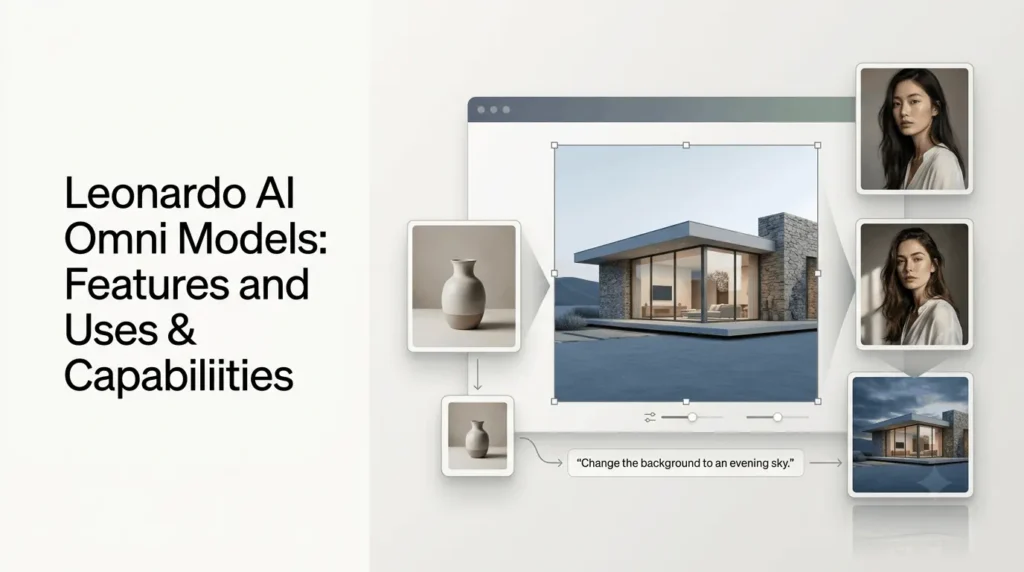
Leonardo AI Omni Models bring advanced image-generation and editing models into Leonardo Ai, allowing creators to generate visuals, use image references, and refine existing images with text instructions.
Instead of treating every edit as a separate manual task, users can describe a change in natural language and let the model make the adjustment.
The Omni experience supports models from providers such as Black Forest Labs, OpenAI, and Google.
The exact model selection can change as Leonardo updates its platform, so it is important to check the current model menu before choosing one for a project.
Quick Summary
- Leonardo AI Omni Models provide image-generation and editing capabilities within Leonardo.Ai.
- They support text-based editing, reference images, and targeted visual changes, depending on the selected model.
- Common uses include product visuals, marketing graphics, social media content, portraits, and concept art.
- Users can refine existing images without necessarily starting from scratch.
- Omni models differ from Leonardo’s own models, such as Phoenix and Lucid Origin.
- Availability, features, and pricing vary by model and subscription plan.
- AI-generated images may contain visual or text errors, so reviewing edits before publishing is important.
What Are Leonardo AI Omni Models?
Leonardo AI Omni Models are image-generation models with contextual understanding of text and visual inputs, available within Leonardo.Ai for creating and editing images.
They can be used to generate images from prompts or refine existing visuals with instructions and reference images. Omni Editing brings these capabilities into an inline editing workflow.
The word Omni does not refer to one standalone Leonardo model. It describes a group of compatible models and the editing experience built around them.
For example, you could generate a product image, change its background from a studio to a modern living room, and adjust the lighting without recreating the entire scene from scratch.
How accurately the model preserves the original image depends on the model, the prompt, and the complexity of the requested changes.
Which Models Are Available in Leonardo AI Omni?
Leonardo’s Omni lineup includes models from several AI developers.
Its support documentation published on August 25, 2026, lists models such as FLUX.1 Kontext, FLUX.1 Kontext Max, FLUX.2 Pro, GPT Image-1, GPT Image-1.5, Nano Banana, Nano Banana Pro, Seedream 4.0, and Seedream 4.5.
Leonardo’s newer AI image editor page also highlights models including GPT-Image-2 and Nano Banana 2.
This illustrates why the available lineup should be checked directly in the app rather than treated as a fixed list.
| Model family or example | General use |
|---|---|
| FLUX.1 Kontext | Prompt-based image editing and controlled changes |
| FLUX.2 Pro | Image generation and creative workflows |
| GPT Image models | Generating and refining images from instructions |
| Nano Banana models | Context-aware image creation and editing |
| Seedream models | Image-generation workflows and visual composition |
These descriptions are general guidance, not a guarantee that every model performs equally well at every task. Availability and capabilities can vary by model and platform update.
What are the Key Features of Leonardo AI Omni Models?
1. Natural-language image editing
One of the main advantages of Omni Editing is the ability to make changes by describing them in ordinary language.
Instead of manually editing every element, you can request changes such as:
- Replace a plain background with a beach at sunset.
- Change a product’s colour while keeping its shape.
- Adjust the lighting to create a warmer atmosphere.
- Remove an unwanted object from a scene.
- Change clothing while preserving the subject’s appearance.
Clear, specific instructions generally give the model a better chance of making the intended edit.
2. Image references and visual guidance
Omni models can use reference images to guide the result.
Depending on the model, you may be able to combine multiple references to communicate different parts of a visual brief.
For example, a marketer could provide one image for the product, another for the desired background, and a third for the colour palette. The prompt can then explain how these elements should be combined.
Leonardo’s support documentation says some models support up to six reference images. The limit depends on the selected model, so check the interface before starting.
3. More controlled edits
A useful editing workflow is to tell the model both what to change and what to preserve.
For instance:
“Replace the background with a modern office, but preserve the person's facial features, pose, clothing, camera angle, and original composition.”
This gives the model clearer boundaries than simply asking it to “make the image better.” However, preservation is not guaranteed, particularly when the requested transformation is extensive.
4. Text and layout adjustments
Omni Editing can support changes to text within images, including replacing or adding text while attempting to respect the surrounding design.
This can be helpful for promotional graphics, product concepts, and social media visuals.
AI-generated text may still contain spelling errors, inconsistent letterforms, or layout problems. Review all wording carefully before publishing or using an image commercially.
5. Editing without starting over
You can use an Omni model to edit images generated with other models on Leonardo.Ai. This allows you to keep a promising image and refine selected details rather than repeatedly generating a completely new result.
The practical benefit is a more iterative workflow: create a starting image, identify what needs improvement, make a focused edit, and review the result.
What Can You Create With Leonardo AI Omni Models?
Omni models are useful for several creative and commercial tasks.
| Use case | Example |
|---|---|
| Product photography | Test a product against different backgrounds or lighting |
| Marketing graphics | Adapt a visual for different campaigns |
| Social media content | Create alternate versions of a promotional image |
| Concept art | Explore different settings, outfits, or visual styles |
| Portrait editing | Adjust backgrounds or lighting while attempting to preserve identity |
| E-commerce | Produce product-scene concepts for review |
| Editorial design | Refine images to better match an article or visual brief |
For production work, treat the generated image as a draft that may require review. Fine details, brand elements, hands, facial features, and small text can still need correction.
How to Use Leonardo AI Omni Models?
You can use Omni models for new image generation or to edit an existing image.
a) Generate an image
- Open Leonardo Ai and go to the image creation tool.
- Choose an available Omni model from the model menu.
- Write a prompt describing the subject, setting, style, lighting, and composition.
- Adjust the available settings and add reference images if supported.
- Generate the image and review the result.
b) Edit an existing image
- Open an image you have generated or select an image available in the editor.
- Open the inline editing experience.
- Select the Omni model you want to use.
- Describe the change you want to make.
- State which details should remain unchanged.
- Generate the edit, review it, and refine the prompt if needed.
Leonardo’s interface may change over time, so the names and placement of controls can differ from these general steps.
What steps can I take to improve my results?
A good editing prompt should describe the change precisely rather than rely on vague instructions.
- Be specific about the subject. Say “the red sports car on the left” rather than “it.”
- Define what must stay the same. Mention the subject’s appearance, position, camera angle, or composition when those details matter.
- Make complex changes in stages. First change the background, then adjust the lighting or other details. Multiple smaller edits can be easier to control than one broad transformation.
- Use reference images purposefully. Explain what each reference contributes, such as the product, colour scheme, setting, or style.
- Inspect the result. Check faces, hands, product details, logos, text, and background elements before using the image.
Leonardo AI Omni Models vs. Phoenix and Lucid Origin
Omni models and Leonardo’s own models serve related but different roles. Omni provides access to multiple model families and an editing workflow, while Phoenix and Lucid Origin are Leonardo model options with their own strengths.
| Comparison | Omni models | Phoenix 1.0 | Lucid Origin |
|---|---|---|---|
| What it is | A group of models and an editing workflow | Leonardo’s own image model | Leonardo’s own image model |
| Main role | Image generation and targeted editing, depending on model | General image generation with prompt adherence | Versatile image generation with prompt adherence and text rendering |
| Reference-image workflows | Supported by compatible models | Check current model settings | Check current model settings |
| Best choice | Depends on the specific model and task | Consider for general image-generation needs | Consider for versatile visuals and images containing text |
There is no universal winner. If you want to make a targeted change to an existing image, an Omni editing model may be the more appropriate option. If you are creating an image from scratch, compare the available models using the same prompt and choose the one that produces the most useful result.
Are Leonardo AI Omni Models Free?
Leonardo Ai offers free access to some of its creative tools, alongside paid plans with different usage limits and features.
However, access to individual Omni models, the number of generations available, and the cost of specific workflows may vary.
Leonardo Ai pricing and the model options in your account for current details. Do not assume every model is available on every plan or that all models consume the same amount of usage credits.
What are the Limitations to Know Before Using Omni Models?
Omni models can make image editing easier, but they do not provide perfect control.
- Preservation is not guaranteed: A requested edit can unintentionally alter other parts of an image.
- Text can be inaccurate: Always proofread text and check typography.
- Complex edits may need several attempts: Large changes can produce unexpected results.
- Reference images have limits: Supported image counts and behaviour depend on the model.
- Availability can change: Models and features may be added, renamed, or replaced.
- Commercial use needs checking: Review Leonardo’s current terms and any relevant rights or licensing restrictions before using outputs commercially.
For important work, keep the original image and compare each edited version before approving the final result.
A Content Creator’s Perspective on Leonardo AI Omni Models
As a content creator, I find the idea behind Leonardo AI Omni Models practical because small visual changes can make a big difference in the final design.
Being able to adjust a background, experiment with lighting, or use reference images without rebuilding the entire image can simplify the creative process.
My advice is to keep prompts specific and review each edit carefully, especially when consistency matters across multiple visuals.
Final Thoughts
Leonardo AI Omni Models give creators access to different image-generation and editing options within one platform.
Their main advantage is the ability to combine prompts and reference images, then refine an image through targeted instructions instead of rebuilding it from scratch.
The best model depends on the job. Start with a clear prompt, specify what should remain unchanged, and review the output carefully.
Since the lineup evolves, use Leonardo’s current model menu and official documentation to confirm which models and features are available.
Frequently Asked Questions (FAQs)
1. What are Leonardo AI Omni Models?
They are a group of image-generation models available through Leonardo.Ai that can interpret text and visual inputs. Compatible models can also be used through Omni Editing to refine images with natural-language instructions.
2. Are Omni Models the same as Lucid Origin?
No. Lucid Origin is a specific Leonardo.Ai image model. Omni refers to a collection of supported models and the associated editing experience.
3. Can Leonardo AI Omni Models edit existing images?
Yes. Leonardo’s Omni Editing workflow can make changes to generated images, and users can add reference images where supported. The quality of the result depends on the model and the requested edit.
4. How many reference images can I use?
The limit depends on the model. Leonardo’s support documentation describes support for up to six reference images for compatible models.
5. Can Omni models generate text inside images?
Compatible models can create or edit text within images, but the result may contain errors. Review all text and layout before using the image in a published design.
6. Which Omni model should I choose?
Choose based on the task. Compare the available models for image editing, reference-image handling, composition, text rendering, and the type of visual you need. Test a small example before committing to a larger project.
Also Read –
Leonardo AI Models: Complete Guide to Models & Capabilities
Leonardo Lucid Origin: Features, Capabilities and What It Can Create?
Leonardo Phoenix: Features, Capabilities, Quality & How It Works?
Pingback: Is Leonardo AI Free? Free Plan, Limits, Tokens & Paid Features
Pingback: Leonardo AI: What It Is and How It Works? Features, Tools & Models